
Wireless Mouse Battery Draining Fast: 5 Things to Check
A wireless mouse that needs a battery every few weeks is telling you something, and it is usually not that the batteries are bad. Most of the drain has a cause you can see, and one of them accounts for more of it than everything else combined.
A baseline helps, so here is ours: a G305 on a single alkaline AA, roughly eight hours a day of office work, went about six months on one cell with a single swap. Anything dramatically shorter than that on a comparable mouse is worth investigating rather than accepting.
The switch almost nobody uses
Most wireless mice have a physical power switch on the underside, and most people never touch it. A mouse left on is not asleep in any deep sense — it stays ready to detect movement, and it does that all night and all weekend.
Sixteen idle hours a day is two thirds of the clock. If you change one thing after reading this, change this one.
Report rate and lighting are continuous costs
Polling rate decides how often the mouse reports its position. Higher is smoother in games and is pure overhead in a spreadsheet, because the radio is simply transmitting more often for the same work.
Lighting, on models that have it, draws whether or not you are moving. Neither of these is a defect and both are usually adjustable in the vendor software — the point is that a gaming profile left on a work machine costs battery all day for a benefit nobody is using.
Where the receiver sits changes how hard the mouse works
A receiver plugged into the back of a tower, behind a metal case and a monitor stand, is a weaker link than the same receiver on a short extension on the desk. A weak link means retries, and retries cost power.
USB 3 ports are a known source of interference in the 2.4 GHz band. If the receiver is wedged between two of them, moving it one port over is free and occasionally fixes both the battery complaint and an intermittent stutter at the same time.
Glass and gloss make the sensor work harder
An optical sensor needs texture to track. On a glass table or a high-gloss finish it is hunting rather than reading, and a sensor that is hunting is not idling. A cheap mat is the fix, and it tends to resolve pointer jitter in the same move.
When the reading is the problem, not the battery
If you switched to rechargeables and the low-battery warning arrived almost immediately, nothing is draining. A NiMH AA is nominally 1.2 volts against an alkaline's 1.5, and a gauge built for the alkaline curve reads a full rechargeable as a half-empty alkaline. The cell is fine; the scale is wrong for it.
What we have not tested
We measured one mouse in one office, with no instrumentation on current draw, so we cannot give you a percentage saved per setting. Ranking these five by size would be inventing numbers.
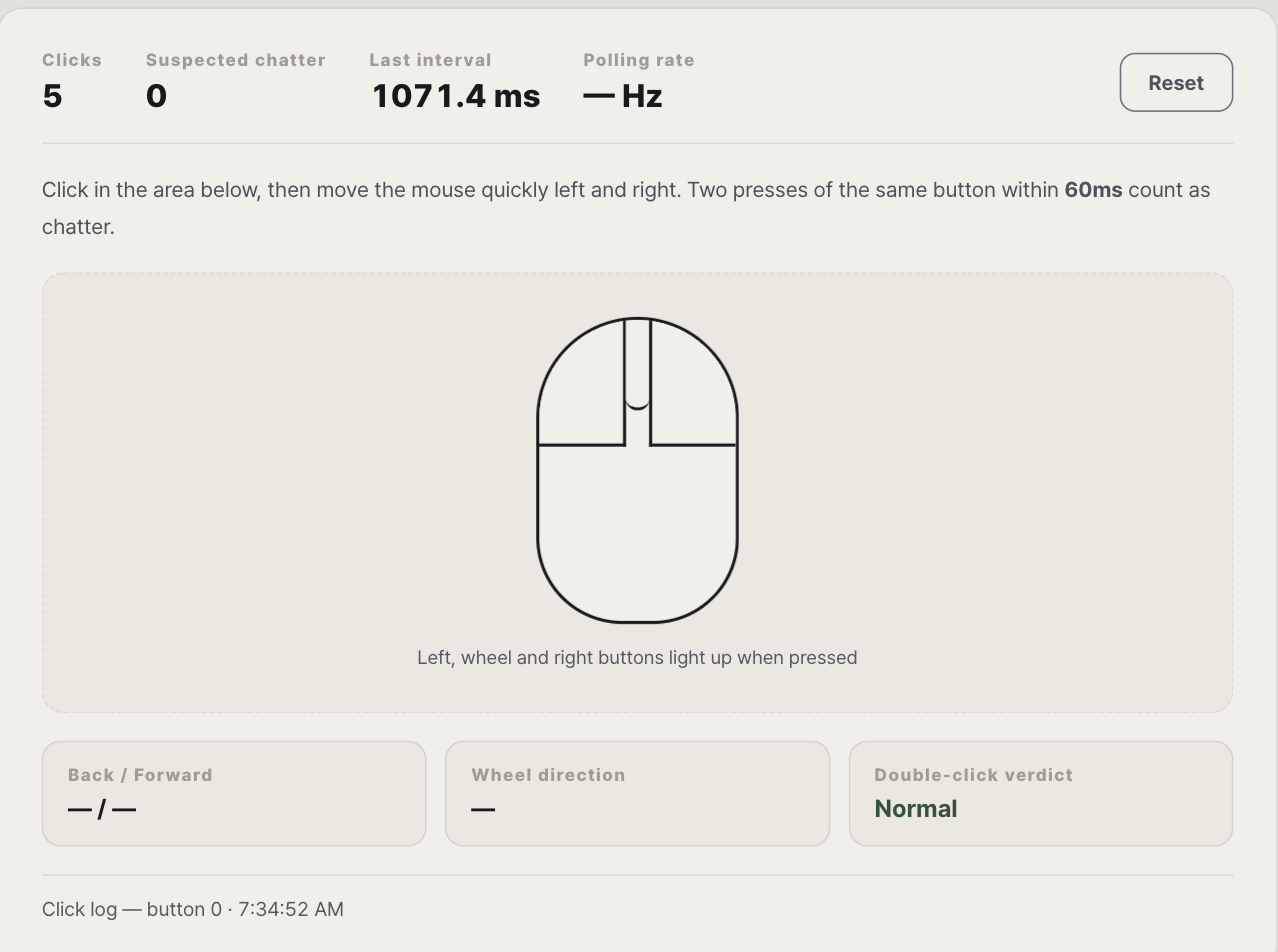
What we will say is which one to try first — the power switch — because it removes the largest block of idle time and costs nothing to test. If the mouse also misbehaves while awake, check it against a click test before spending anything, and the battery-side detail sits in our wireless mouse battery guide.
Related Desk Armory note
If a rechargeable AA shows low immediately, that can be a gauge problem rather than fast drain. The related note G305 Battery Life: Which AA to Use separates cell voltage from actual runtime.
How this note was made
Desk Armory used one Logitech G305 for roughly six months of office work on an alkaline AA. We did not instrument current draw or measure the percentage saved by each setting, so the checks are ordered actions, not claimed power-saving percentages.